Gold Whale Empire Getting Started

Gold Whale Empire — Getting Started Guide

Your step-by-step path from download to first trade. No experience required.

~15 minutes
9 steps
Beginner friendly
1

Before You Begin

Make sure you have everything ready. Check off each item as you go:

  • I have a MetaTrader 5 account with a broker (ICMarkets, Pepperstone, Exness, etc.) — account type must be Raw Spread or ECN. Other account types may produce different results.
  • My broker offers XAUUSD (Gold) for trading
  • I have at least $2,000 in my account (minimum required for all profiles)
  • I have MetaTrader 5 downloaded and installed on my computer or VPS
  • I understand that trading involves risk and past results do not guarantee future performance
Don't have MetaTrader 5 yet?
1
Choose a broker — Pick a reputable MT5 broker that offers XAUUSD. ICMarkets, Pepperstone, and Exness are popular choices with low gold spreads.
2
Open a demo account first — Every broker offers free demo accounts with virtual money. This lets you test the EA without risking real capital. Highly recommended!
3
Download MT5 — Download directly from your broker's website, or from metatrader5.com. Install and log in with your account credentials.
What is a VPS and how to set it up?

A VPS (Virtual Private Server) is a remote computer that runs 24/7, keeping your EA active even when your personal computer is off. This is highly recommended for uninterrupted trading.

Our recommended VPS provider: forexvps.net

1
Sign up for a VPS plan — Go to forexvps.net and choose a plan. Select a server location close to your broker's server for the lowest latency.
2
Connect to your VPS — You'll receive an IP address, username and password. On your computer, open Remote Desktop Connection (search "mstsc" in Windows Start menu), enter the IP address, and log in with the credentials provided.
3
Install MetaTrader 5 on the VPS — Once inside the VPS, open the browser, download MetaTrader 5 from your broker's website and install it just like you would on your own computer.
4
Log in to your trading account — Open MT5 on the VPS and log in with your broker account credentials (server, login, password).
5
Install and run the EA — Follow Step 2 of this guide to install Gold Whale Empire from the MQL5 Market. Attach it to your XAUUSD M15 chart and you're done. The VPS will keep it running 24/5.
Pro tip: You can disconnect from the VPS at any time — the EA keeps running in the background. Just don't shut down or log off the VPS session.
2

Installing the EA

1
Open the Market — In MetaTrader 5, go to the Market tab at the bottom of the terminal (or click Tools → Market from the top menu).
2
Search for the EA — In the Market search bar, type "Gold Whale Empire" and press Enter. You'll find it listed under Expert Advisors.
3
Purchase & Install — Click on the EA, then click the Buy button. After completing the payment through your MQL5.com account, the EA will be downloaded and installed automatically in your terminal.
4
Verify installation — In the Navigator panel (left side), expand Expert Advisors → Market. You should see "Gold Whale Empire" listed and ready to use.
Troubleshooting installation

Don't see the Market tab? — Make sure you're using MetaTrader 5 (not MT4). The Market tab is at the bottom of the terminal, next to Trade, History, etc.

Need an MQL5.com account? — You can create one for free directly from the Market tab. Click "Register" and follow the steps. You'll need it to complete the purchase.

EA not appearing after purchase? — Restart MetaTrader 5 completely. The EA should appear under Navigator → Expert Advisors → Market. If not, check your MQL5.com account purchases to re-download.

3

Setting Up Your Chart

1
Open a Gold chart — In Market Watch panel (Ctrl+M), find XAUUSD. Right-click it → Chart Window.
2
Set the timeframe to M15 — Click M15 on the timeframe toolbar at the top of MT5.
Critical: Gold Whale Empire ONLY works on the M15 (15-minute) timeframe. Using any other timeframe will produce zero signals.
3
Attach the EA — From the Navigator panel, drag "Gold Whale Empire" onto the XAUUSD M15 chart. A settings dialog will appear.
4
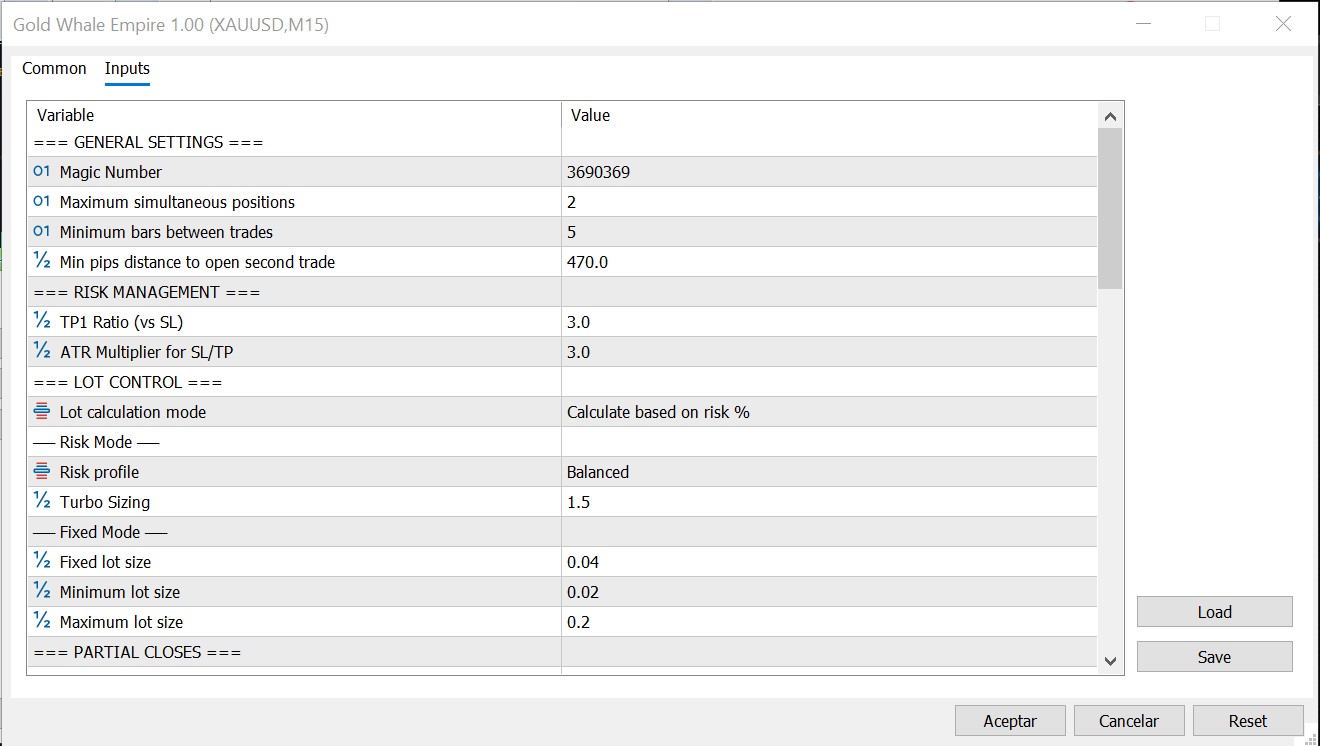
Common tab — Check the box that says "Allow Algo Trading". Leave DLL imports unchecked (not needed).
5
Inputs tab — Choose your Risk Profile (see Step 4 below). Leave other settings at defaults for now.
6
Click OK — The EA is now running! You should see the Neon Panel appear on your chart.
EA active check: Look at the top-right corner of your chart. You should see the name "Gold Whale Empire" displayed there, confirming the EA is attached and running. If you don't see it, make sure "Algo Trading" is enabled on the main toolbar.
Gold Whale Empire EA input settings in MetaTrader 5 Inputs tab, showing Risk Profile, Trading Hours, Lot Control, and all configurable parameters

The Inputs tab where you configure your risk profile and trading parameters

4

Choosing Your Risk Profile

Click a profile to learn more. This is the most important setting you'll choose.

🔒
Safe
Consistent, steady growth
Return (1 year)+191%
Win Rate89.05%
Max Drawdown9.71%
Avg. Trades/Day~6
"The sweet spot between safety and growth."
⚖️
Balanced
Strong returns, manageable risk
Return (1 year)+596%
Win Rate92.08%
Max Drawdown19.22%
Avg. Trades/Day~8
"Strong returns with manageable risk."
🚀
Aggressive
Maximum growth potential
Return (1 year)+2,429%
Win Rate93.95%
Max Drawdown31.86%
Avg. Trades/Day~10
"Maximum firepower. Not for the faint-hearted."
Important: These results are from testing (Jan 2025 – Jan 2026, $2,000 starting capital). Past performance does not guarantee future results. Always start with a demo account.
5

Understanding the Dashboard

Once the EA is running, you'll see several visual elements on your chart. Here's what each one does:

📊

Neon Panel

Your main cockpit. Shows account balance, equity, today's profit/loss, number of active trades, and current signal strength. Updated in real-time.

🧭

Trend Compass

A visual arrow showing if gold is trending UP or DOWN. Green means buy territory, red means sell territory. The bigger the arrow, the stronger the trend.

📡

Signal Monitor

Shows the live signal analysis in real time. When all conditions are met, a trade triggers automatically. Helps you understand why the EA is or isn't trading.

🕐

Session Info (Top Scrolling Text)

The scrolling text at the top of the chart. Displays which trading sessions are currently active (London, New York, Asian) and how much time is left in the current session.

📰

Market Ticker (Bottom Scrolling Text)

The scrolling text at the bottom of the chart. Shows real-time market data like DXY movement, current spread, and other relevant information.
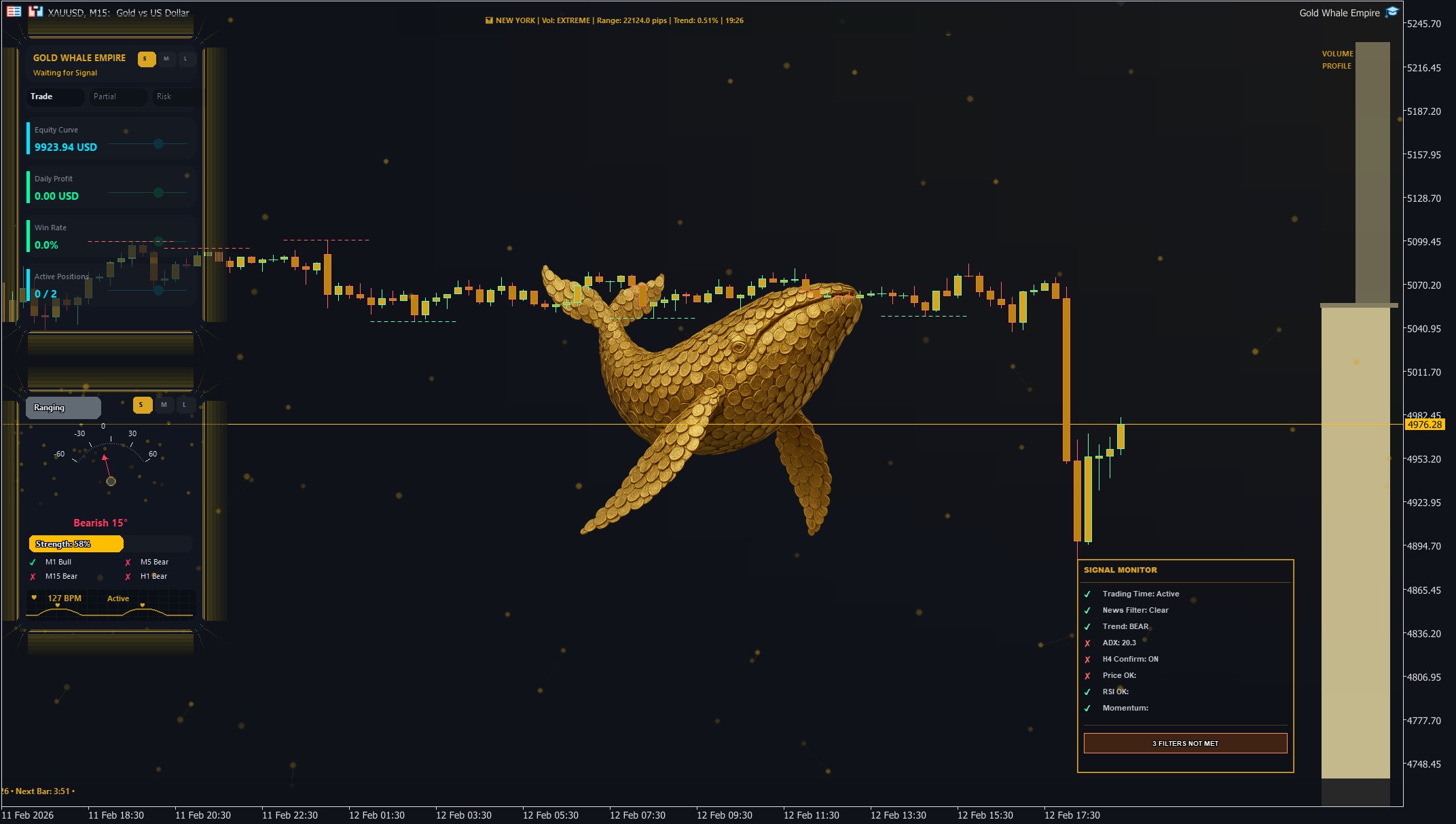
Draggable Panels: The Neon Panel, Trend Compass, and Signal Monitor are fully draggable. Click once on the border of any of these panels to grab it, move it to your preferred position, and click again to release it.
Gold Whale Empire EA running on XAUUSD M15 chart in MetaTrader 5, showing the Neon Panel, Trend Compass, Signal Monitor, and all visual components

Gold Whale Empire dashboard running live on a XAUUSD M15 chart

6

Your First Trade

What to expect after you attach the EA:

1
The EA will NOT trade immediately. It waits for a high-probability signal. Be patient.
2
It only trades during the configured trading hours (default: 1:00 to 22:00 broker time). You can adjust these hours in the EA inputs. Outside this window, the EA monitors but doesn't trade.
News Filter: By default, the news filter is disabled (AvoidNews = false). If you enable it, the EA will pause trading before and after high-impact news events to protect your positions from volatile spikes.
3
When all signal conditions are met, the EA opens a trade automatically. Every trade is placed with a stop loss from the moment of entry — your capital is never unprotected. You'll see the trade appear in the Trade tab at the bottom of MT5.
4
The EA manages everything from that point: entry, partial close, trailing stop, and exit. You don't need to touch anything.
5
If UseGlobalProfitClose is enabled (default: on), when floating profit reaches the percentage set in GlobalProfitPercent, all positions close automatically. You can configure this target in the EA inputs.
Be patient. Gold Whale Empire is designed to wait for high-probability setups, not to trade constantly. Quality over quantity is the philosophy.
7

Key Settings You Might Adjust

The default settings work great for most traders. But here are the ones you might want to tweak:

9%

DailyProfitTargetPercent (default: 9%)

When your daily profit hits this percentage of your account, ALL trades close. Lower this for a more conservative daily cap.

🌐

Trading Hours

You can adjust StartHour and EndHour to set your preferred trading window. The default range (1:00 to 22:00) is intentionally wide to give the EA maximum flexibility to monitor the market and enter on the best opportunities.

✂️

Partial Close Settings

We recommend keeping the default partial close values as they are. These control when and how much of a trade is closed as profit progresses: FirstPartialAt, FirstPartialSize, SubsequentPartialEvery, and SubsequentPartialSize. You can modify them for a different trading style, but this will result in different performance and results. Always test changes on a demo account first.

Tip: Don't change settings while trades are open. Wait for all positions to close, then adjust settings and let the EA restart fresh.
8

Important Tips

✅ DO

  • Use a VPS for 24/5 uninterrupted operation
  • Start with a demo account for at least 2 weeks
  • Let the EA run — this is an EA designed to navigate the markets constantly. There will be good months and bad months, but fundamentally, the bad months won't be that bad, and the good months will be excellent
  • Keep your MT5 terminal open and connected
  • Monitor your account periodically
  • Respect the risk profile you chose

❌ DON'T

  • Manually close the EA's trades
  • Run on timeframes other than M15
  • Use on symbols other than XAUUSD
  • Change settings while trades are open
  • Over-leverage beyond your risk profile
  • Panic during normal drawdowns
  • Run it alongside other EAs on the same account — Gold Whale Empire calculates lot sizes based on your account balance. If another EA wins or loses, it changes your balance and causes incorrect lot sizing
9

Frequently Asked Questions

What broker should I use?
Any MT5 broker that offers XAUUSD (Gold) trading. Low spreads make a difference. Popular choices include ICMarkets, Pepperstone, Exness, and Tickmill. Make sure the broker is regulated and has a good reputation. Your account type must be Raw Spread or ECN for optimal performance.
Can I use it on other currency pairs?
No. Gold Whale Empire is exclusively built and optimized for XAUUSD (Gold) on M15. Every signal layer, every filter, every parameter has been tuned specifically for gold's behavior. Running it on other pairs will produce poor results.
How much money do I need to start?
Minimum $2,000 for all profiles. This gives the EA enough margin to work with comfortably. The more capital you have, the more stable your experience will be.
Does it work on MetaTrader 4?
No. Gold Whale Empire is built exclusively for MetaTrader 5. MT4 is not supported and there are no plans for a port. MT5 is available for free from all major brokers.
Can I run it on my phone?
The EA itself must run on a desktop computer or VPS (Virtual Private Server). However, you can monitor your trades on your phone's MT5 app. You'll see all positions, profits, and account status in real time.
What happens if my internet disconnects?
The EA stops analyzing and trading when disconnected. Any open trades remain with their stop losses in place (handled by the broker's server). When you reconnect, the EA resumes normally. This is why a VPS is recommended for serious traders.
How do I update the EA?
Simply replace the old .ex5 file in your MQL5/Experts folder with the new version, then restart MetaTrader 5. Your settings are stored per-chart, so they'll be preserved.
Is my capital safe?
The EA places a stop loss on every single trade from the moment of entry. Your capital is never unprotected. However, all trading carries risk. The max drawdown for each profile tells you the worst-case scenario observed in testing. Never trade with money you can't afford to lose.